Remote Camera Not Working
If your remote camera is not functioning properly, follow these steps to troubleshoot:
1. Check Network Connection
- Ensure Both Devices Are on the Same Wi-Fi Network
- Both the remote camera device and the controlling device must be connected to the same Wi-Fi network.
- Note: Remote connections may not work on public or business networks due to their security settings.
2. Manually Enter Remote Camera Address
If the remote camera device does not appear automatically, you can enter the remote camera address manually:
Open Camera Settings
- Tap the settings icon in the camera settings menu to open the camera list.
Select Remote Camera
- Choose Remote Camera from the list.
Configure Remote Camera
- Tap Configure and enter the address as shown in the remote camera app.
Connect
- Tap Connect to establish the connection.
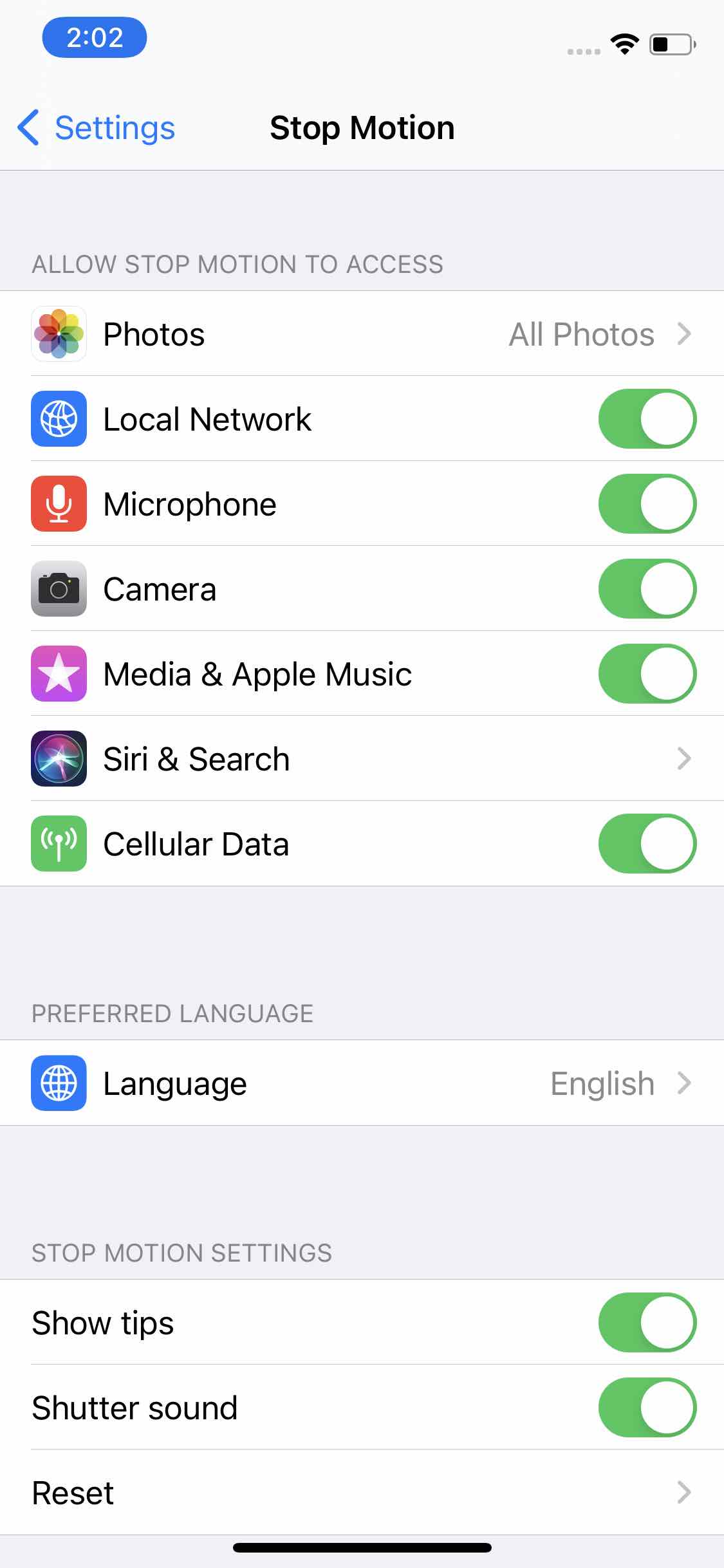
3. Verify Privacy Settings
Ensure that Local Network access is enabled for both devices:
Open Settings
- Go to the Settings app on each device.
Locate Stop Motion Studio
- Swipe down and find Stop Motion Studio.
Enable Local Network
- Make sure Local Network access is enabled for Stop Motion Studio on both devices.
4. Restart Wi-Fi Connection
If the remote camera still does not connect:
Turn Off and On Wi-Fi
- Open the Settings app and select Wi-Fi.
- Tap the Wi-Fi slider to turn the connection off.
- Wait a few seconds, then tap the slider again to turn the connection back on.
- Repeat this process on both devices.
Restart Devices
- If the issue persists, try restarting both devices.